
Certification and your Skills Passport
Certificate levels and how they are issued, how to view and download certificates from your Skills Passport, the name and learning hours on a certificate, and how anyone can verify a certificate you share.
- Type
- How-to
- For
- Learners
- Estimated time
- About 9 min
- Last verified
Browse all help topics
Skip to articleBefore you start
Before you start
Learning, practice and assessment themselves do not require sign-in. Whether a course offers a Course Completion Certificate or Capability Certificate, and its exact requirements, varies by course: check that course's "Assessment and Evidence" section for the specifics. What follows here is the logic that applies across every course. Reaching 100% reading progress does not automatically produce a certificate: each credential has its own defined requirements, listed below.
How Course Completion Certificates and Capability Certificates are earned
- Course Completion Certificate: confirms that you finished the course. You completed every required module, and scored at least the course's defined passing threshold on the post-test. Some courses also require submitting a required practice activity or artifact before the completion requirement is met.
- Capability Certificate: confirms that you can actually do the work. You submit a practical artifact (for example an analysis report or an applied exercise), and an instructor or credential administrator reviews that specific submission against the course's scoring rubric, checking it meets the capability bar with no critical failure. Submitting the artifact alone never issues the certificate; only a passing review does.
Certificates come in several levels: L1 Course Completion, L2 Applied skill (the Capability Certificate), L3 Role competency (requires specified prerequisite certificates, courses or competencies) and L4 Authentic practice (earned through a campus or industry co-creation project contribution). L5 Professional certification is not open for issuance yet. Most learners meet L1 and L2; which levels a course offers is shown on that course's page.
The Course Completion Certificate and Capability Certificate are earned independently of each other: not having one does not affect the other, and not every course offers both. A certificate confirms you met that course's defined requirements; it does not represent a specific job qualification or professional certification. A passing assessment score alone is never enough for a Capability Certificate: it always requires reviewed, non-assessment evidence of applied work.
Correct quiz answers and the details of a certificate's scoring rubric never appear on a course page, in a downloadable file, or anywhere a learner can see. Issuance and review decisions are always made on the server and in protected staff tools, not by hiding or showing something in the frontend.
Certificate and artifact review is currently carried out by an instructor or credential administrator through staff tools, not a dedicated self-service review screen. If you have submitted a practical assessment or artifact and are waiting on a certificate, your instructor carries out the review; there is no learner-facing way to check review status beyond your Skills Passport.
Issuance policies in plain language
Every certificate has an issuance policy that decides what happens once you meet its requirements. Different certificates, even in the same course, can use different policies, and a policy can be changed after the course manager consents, so this section only explains what each policy means; it does not say which one a given certificate uses right now.
- Automatic: once you meet the course requirements, the system issues the certificate immediately and nobody has to act. Typically used for completion certificates.
- Automatic once verified: once you meet the course requirements and the assessment passes (for example work verified by an assessor), the system issues the certificate automatically. Typically used for capability certificates.
- Manual review required: after completion your certificate joins a review queue and a Credential Admin reviews each one before it is issued, so you wait.
- Batch approval: after completion certificates accumulate until a Credential Admin approves them together, so you wait for the batch run.
- Council approval: a council must decide before the certificate is issued. Typically used for high-impact or externally visible certificates, with the longest wait.
- Issuance disabled: the certificate is not being issued for now, and completing the course does not earn it until the policy is changed back.
Whatever the policy, you must first actually meet the certificate's requirements; the policy only decides who issues it, and through which process, after you do.
Steps
- 1Sign in
Sign in to your account - 2Open your Skills Passport
Go to My Learning, then Skills Passport, to see every certificate issued to you - 3Review a certificate
The Skills Passport list shows the certificate name, type and issue date; the certificate itself also carries its version, level and issuer, and the score is not shown by default - 4Download the certificate
Select Download certificate and a confirmation dialog first shows the name printed on that certificate (the name recorded when it was issued); confirm to download the PDF. The PDF follows the interface language you are using (Chinese or English) and includes a verifiable QR code. If your current account name is different, the dialog says so: changing your name only affects certificates issued afterwards - 5Get a shareable verification link
Every certificate has a public verification link. Opening it shows the certificate holder's name, issuance status, and credential details (name and version, level, issue and expiry dates, related competencies and criteria), but never an email, score, or other private data; only someone who has that link can see it, and there is no way to search or list anyone else's certificates
Public sharing is opt-in
Your Skills Passport is private by default: only you can see it. You can choose to turn on a public Skills Passport page; only then does a shareable link exist. If you never turn it on, no one can reach your passport through a link, and you can turn it off again at any time.
Certificates can also be exported as Open Badges 3.0 or CLR 2.0 files for use with other systems that support those formats. The platform does not currently push certificates automatically to an external badge wallet.
The name on a certificate
The name on a certificate comes from the "certificate name" on your Account page; if you have not set one, your display name is used, and if neither exists the certificate shows the generic placeholder "NTPU AI Learn learner". Once a certificate is issued, its name is fixed as it was at that moment (the PDF and the public verification page both use that fixed value). Changing your account name or certificate name later only affects certificates issued afterwards, never one already issued.
Learning hours
Course Completion Certificates (L1) of GoAI-track courses also show "Learning hours", derived from the course duration: for example the 8-hour full edition of GoAI 101 shows 8 hours and the 6-hour essentials edition shows 6 hours. The two editions are separate courses with separate certificates. The learning hours appear on both the PDF certificate and the public verification page, so agencies can check training hours. Other courses and other levels do not show learning hours.
Verifying a certificate
Anyone who has a specific certificate's verification link (including the page a scan of the QR code on the PDF opens), or only the verification code pasted into the lookup page, can confirm the certificate was genuinely issued by NTPU AI Learn and whether it is currently active, expired, revoked or superseded by a newer version. The page shows the holder's name, certificate name and version, level, issue date and expiry date (if any), learning hours (where applicable), and related competencies and criteria. It never shows an email, student id, score or any other certificate you hold.
Course feedback and your certificate
After you receive a course certificate, please leave course feedback. Feedback is not a condition for a certificate and does not affect it; for self-paced Industry Lab courses, holding an active certificate counts as the participation needed to leave feedback. If you have not left feedback 1 to 14 days after the certificate was issued, the platform may send one reminder email (depending on platform settings), and My Learning shows a reminder banner.
Claiming learning you completed anonymously
If you previously completed a course anonymously (session code plus learner code), you can sign in and enter the claim token you were given at the time on the Skills Passport page to link that learning history to your account. After a successful claim the system recalculates your eligibility; whether that earns a certificate still depends on the certificate's requirements and issuance policy.
Sample certificate (for format reference only)
Below are one Chinese and one English sample certificate PDF. The learner name and course title are for demonstration purposes only and do not represent a real issuance: they are provided so you can see the certificate’s layout, fields, and bilingual formatting.
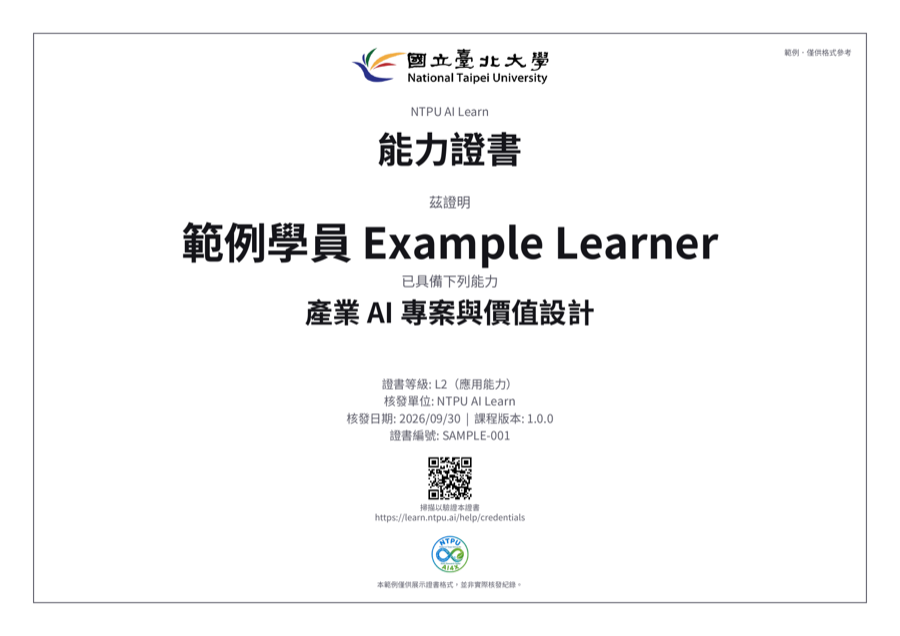
- Open Chinese sample certificate PDF: For demonstration purposes, not a real issuance
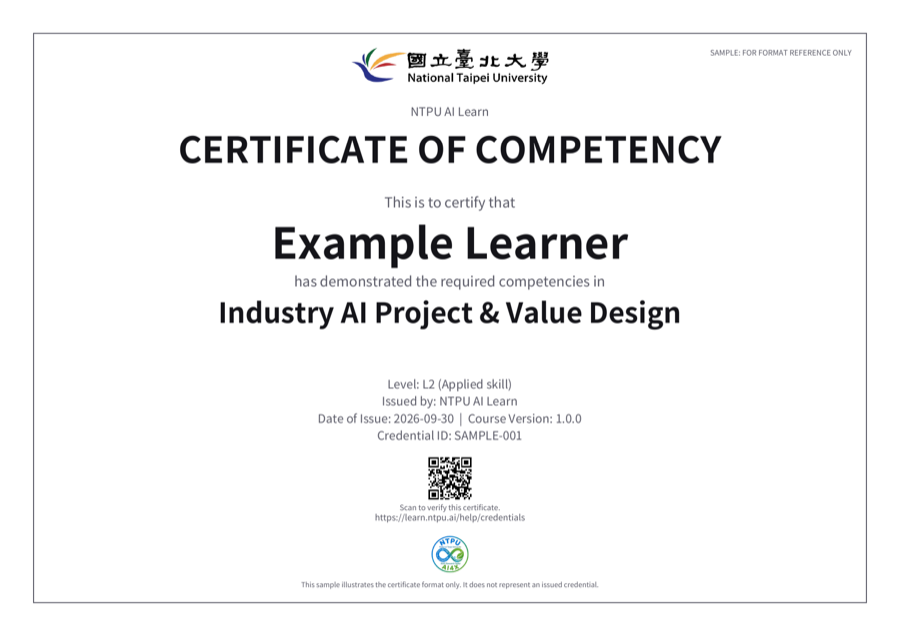
- Open English sample certificate PDF: For demonstration purposes, not a real issuance
What you will see when you are done
Your Skills Passport lists every certificate issued to you, with a PDF download and a verification link for each. Anyone with that specific certificate's link or code can see your name on it and confirm it is valid on the public verification page, without seeing your score, email, other private data, or any other certificate you hold.
Common problems
- 1I finished the course but there is no certificate in my Skills Passport
Completion certificates are usually issued automatically once you meet their requirements. Some certificates (and any that require manual review) need an instructor or Credential Admin to review your submitted work first and pass it: submitting it by itself does not issue the certificate; see the issuance policies above for what each one means. If you still do not see one after a while, ask your instructor. - 2The verification page says not found or no longer valid
The certificate may have been revoked or replaced by a newer version. If you believe this is a mistake, contact the issuer. - 3The name on my certificate is wrong, or I want a different name format
You can edit your account's "display name", or set a separate "certificate name", from the Account page yourself: any certificate issued after that uses the new name. Editing it never changes a certificate already issued to you (the confirmation shown before a PDF download displays the name actually printed on that certificate); to correct an already-issued certificate, contact the issuer. - 4Someone saw something on my public passport that should not be public
The public page only shows certificates that are currently valid, and never shows scores or private data. If you are still concerned, you can turn off public sharing at any time.
Was this article helpful?
Feedback is anonymous: only a daily count per article, language and answer is kept.
Related articles
- Account and sign-inWhen you need to sign in, how to sign in, and what the Account page lets you do.
- Certification ArchitectureHow certification is defined, how eligibility is determined, how it is issued, and exactly what the public verification page does and does not reveal.
- PrivacyWhat stays in your browser, what is sent to the server, and who can see it.
- GlossaryShort definitions of terms used across the platform.